
Rewrite selected text in any Windows app
Highlight a sentence or paragraph in an editable Windows field, press Win+Ctrl+R, and choose Retone, Fix Grammar, or Translate. Lightphrase replaces the selected text in Gmail, Outlook, Word, Slack, and other apps where you write. The rest of your draft stays in place. Selected text is sent only after you press the shortcut.
Free for the first 1,000 seats. Then a waitlist.1,000 of 1,000 seats left. Then a waitlist.All 1,000 seats are taken. Join the waitlist and we’ll email you when one opens.
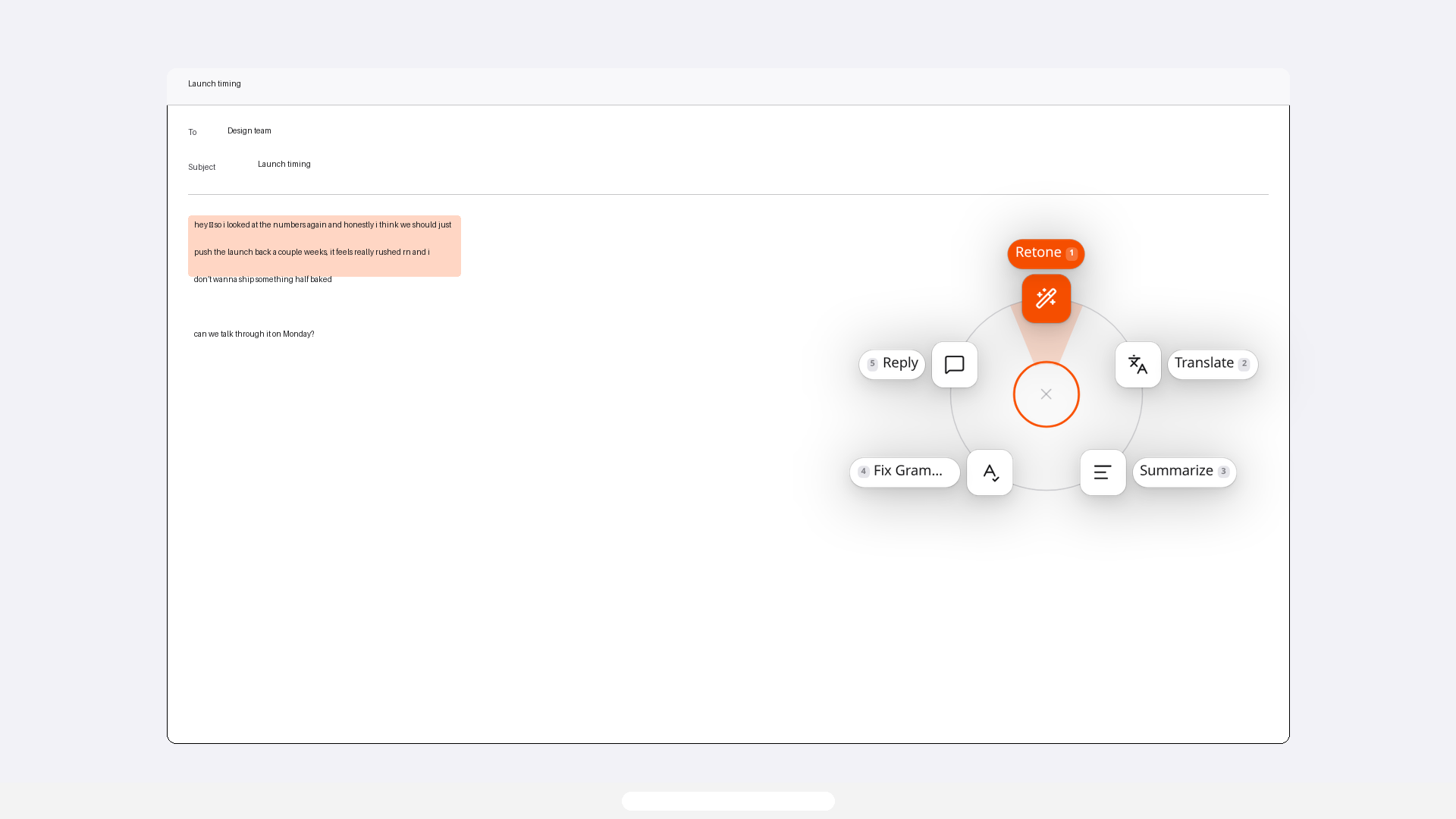
Choose an action for the text you selected
Retone changes the wording and tone. Fix Grammar targets spelling and grammar. Translate changes the language. Select only the part you want to edit, then choose the action that fits the job.
Before a grammar edit
Hi Priya, I has attached the revised agenda. Please check item 2 before the meeting.
After a grammar edit
Hi Priya, I have attached the revised agenda. Please check item 2 before the meeting.
How to rewrite text in place
-
1. Highlight the text
Select text in any editable field: Gmail, Slack, a document, a note, a mail compose box, or a browser form. The field has to accept typing. Read-only page text cannot be replaced — an incoming chat bubble or a webpage you cannot edit will not be overwritten.
-
2. Press Win+Ctrl+R
The default shortcut is Win+Ctrl+R on Windows, and it is configurable in Settings. Sign in once to arm it; closing the window leaves Lightphrase in the tray. Press it and the wheel opens on your pointer. You stay in the app you were already writing in.
-
3. Sweep to an action
Hold the shortcut, push toward Retone, Translate, Summarize, Fix Grammar, or Reply, then release. Sweeping past the outer rim still counts. If you already let go, the wheel stays open: click a slice, press a number key, or use the arrows and Enter. Escape, a click outside, or switching apps cancels.
-
4. Rewrites replace; Reply copies
Retone, Translate, Summarize, and Fix Grammar replace the selection where it sits. Reply writes a response to the highlighted message and copies it — it does not paste over the selection. Before Lightphrase copies your selection it snapshots the clipboard, and it puts that snapshot back after the paste. Selected text is sent only after you press the shortcut; if Retone is on your wheel, it starts as soon as the wheel opens and is discarded if you pick something else.
- Gmail
- Slack
- Any browser
Where it works
Lightphrase is not a browser extension. It copies the selection, generates a replacement, and pastes it back into any editable field. Read-only page text cannot be replaced.
-
Gmail
In Gmail, highlight a draft in the compose box and press Win+Ctrl+R. Rewrites replace that selection in the same box; you stay on the thread. Incoming mail you cannot edit is different: Reply copies a response. For a reply without overwriting the message, that workflow has its own page.
-
Slack
In Slack, highlight text in the message field and the rewrite pastes back into that box. Channels, DMs, and threads work when the field is editable. A sent chat bubble is not editable, so that rewrite is copied and a notification says so.
-
A document
In a document, highlight a sentence or a paragraph and the replacement pastes back into the same selection. Lightphrase does not install an add-in; it uses clipboard copy and paste. Move the caret before generation finishes and replacement is cancelled.
-
A note
In a note, highlight text on a page, in a comment, or in a field you can type into. The rewrite pastes back into that block. Pages you can only view are read-only — those selections cannot be replaced, and the rewrite is copied instead.
-
A mail compose box
A mail compose box is editable, so a highlighted draft is replaced in place. Highlight an incoming message you cannot edit and pick Reply for a copied response. The shortcut is registered with Windows, so it works while that app is focused.
-
Browser forms
Any browser form with an editable field works: a textarea, a contenteditable box, a comment form. Article copy and a rendered PDF in the tab cannot be replaced; those rewrites are copied and a notification says so.
Looking for a Grammarly alternative for Windows? That comparison is a separate page.
What cannot be replaced
Replacement uses copy and paste. Read-only text cannot be overwritten.
-
Read-only pages, PDFs, and chat bubbles
When the highlighted text is not editable — a webpage you are reading, a PDF, a chat bubble that is not a compose field — Lightphrase leaves it as is. The rewrite is copied to your clipboard instead, and a notification tells you so.
-
Reply copies; a moved selection cancels
Reply always copies a response and leaves the incoming message unchanged. If you move the caret or change the selection before generation finishes, replacement is cancelled so the wrong field is not overwritten. In a copy-only case the previous clipboard is not restored, because the rewrite is what you now need.
The shortcut
-
The wheel opens every time
Win+Ctrl+R always opens the wheel so you can pick Retone, Translate, Summarize, Fix Grammar, Reply, or a custom action. There is no skip-the-wheel shortcut.
-
Rebind the shortcut
The default is Win+Ctrl+R. Rebind it in Lightphrase → Settings. The shortcut is registered with Windows, so it works while another app is focused. To translate the selection in place, press Win+Ctrl+R and choose Translate from the wheel.
Frequently asked questions
Does Lightphrase work in Gmail and Slack?
Yes. Lightphrase works in any editable field, including Gmail, Slack, and browser forms. It copies the selection, generates a replacement, and pastes it back, then restores your clipboard.
Do I have to switch to another tab to rewrite text?
No. Highlight the text, press Win+Ctrl+R, sweep the wheel, and the selection is replaced where it sits. You stay in the app you were already writing in.
Which Windows apps can Lightphrase rewrite text in?
Any app with an editable field. A document, a note, a mail compose box, and a browser form work when you can type in them. Read-only page text cannot be replaced.
Is Lightphrase free on Windows?
While it is in early access, yes. Every account gets 1,000 rewrites a day, resetting every UTC day. Signing in once arms the shortcut.
Does Lightphrase restore my clipboard after a rewrite?
Yes. It snapshots the clipboard before it copies your selection and restores that snapshot after it pastes. The exception is a copy-only rewrite: when the text was not editable, or you picked Reply, the result stays on the clipboard so you can paste it.
Can I add custom actions to the wheel?
Yes. Retone, Translate, Summarize, Fix Grammar, and Reply ship on the wheel. Custom actions — a name, an icon, and an instruction — can join them, up to nine slices total. At least one action must stay on the wheel.
How many rewrites do I get per day?
Each signed-in account gets 1,000 rewrites per UTC day. The counter rolls over at 00:00 UTC. Lightphrase is free during early access for the first 1,000 accounts; after that there is a waitlist.
Where do I download Lightphrase for Windows?
From the Microsoft Store (9P821MSH3VL5), published by Mason Solutions. Store updates install on their own. macOS and Linux are in development.
Can I change the Win+Ctrl+R shortcut?
Yes. The default is Win+Ctrl+R. Rebind it in Lightphrase → Settings.
Guides for this workflow
- How to summarize meeting notes before sharing them with your team
Summarize selected meeting notes on Windows while keeping decisions, proposals, confirmed owners, deadlines, and unresolved questions distinct.
- Why a selected-text rewrite may be copied instead of replaced
Find out why a selected-text rewrite may be copied instead of replaced, check your selection and editable field, and use the copied result safely.
- How to choose a writing tone for each message on Windows
Choose a saved writing tone for a work email or casual message, and learn how the Ask for tone setting changes Retone and Reply on Windows.
Rewriting that happens in place, not in another tab.
See how Lightphrase works, or download it for Windows.