
Rewrite Outlook and Gmail emails in place on Windows
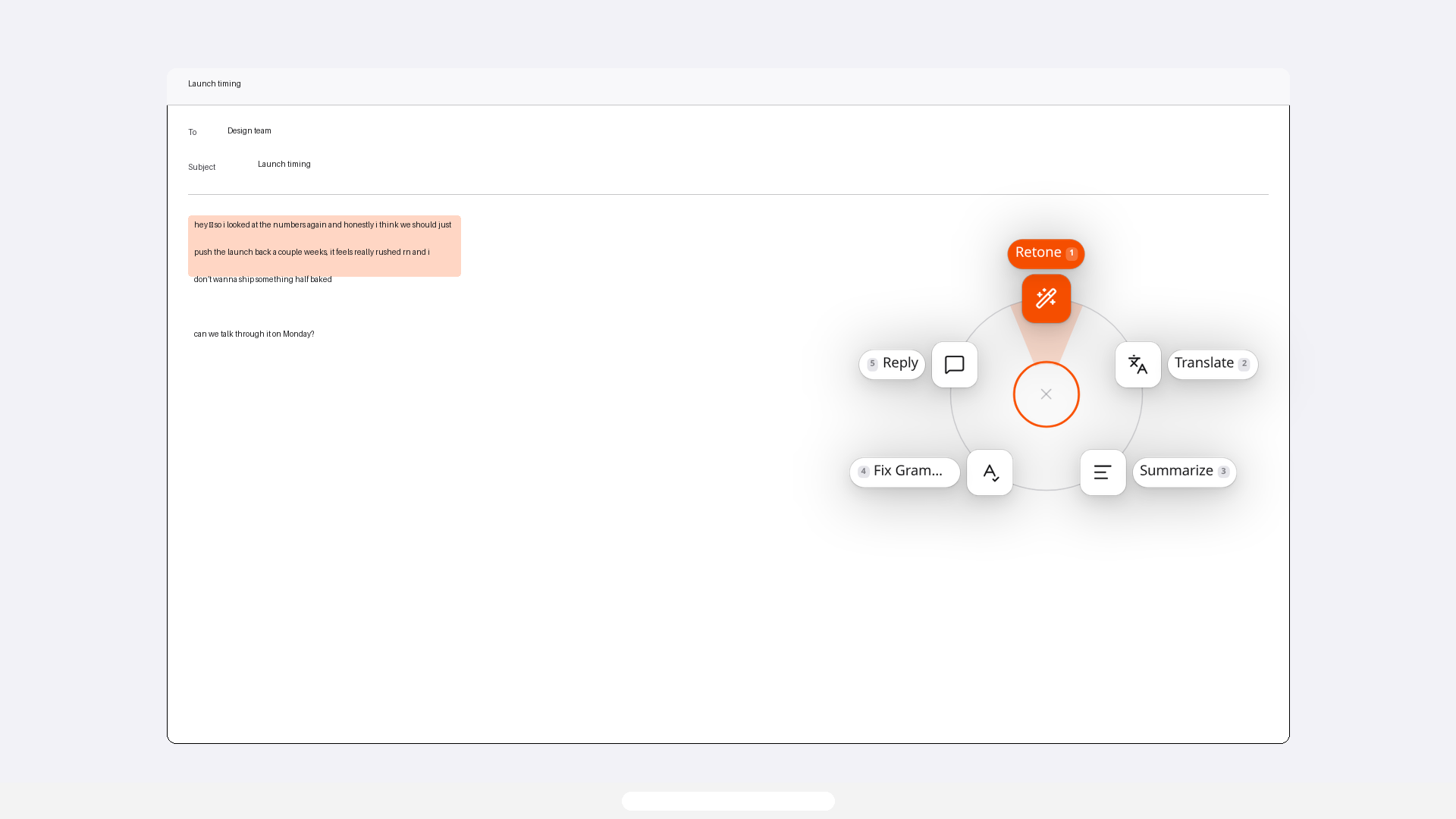
Highlight a draft or an incoming message in any editable field, press Win+Ctrl+R, and Lightphrase works where you already are. Sweep the wheel. Retone rewrites the selection in place. Reply writes a response and copies it so the message you were answering stays put. You stay in the thread.
Free for the first 1,000 seats. Then a waitlist.1,000 of 1,000 seats left. Then a waitlist.All 1,000 seats are taken. Join the waitlist and we’ll email you when one opens.
How to rewrite a draft in Outlook or Gmail
- Open a new email or a reply draft, and write the facts you want to communicate.
- Highlight the sentence or paragraph you want to change in the compose field.
- Press Win+Ctrl+R and choose Retone. For a grammar correction, choose Fix Grammar.
- Compare the replacement with your draft. Check names, dates, requests, and promises before sending.
Use an editable draft for this workflow. For an incoming message, choose Reply to copy a response, then paste it into your reply field and review it.
Before a tone edit
Hi Sam, can you look at section 3 of the supplier proposal and send me comments by Friday? I need your feedback before I share the proposal with the team.
After a tone edit
Hi Sam, could you review section 3 of the supplier proposal and send your comments by Friday? I need your feedback before sharing the proposal with the team.
Retone a draft, or reply to a message
Two jobs. One shortcut. They do not finish the same way. Retone changes text you already wrote. Reply writes back to text you were sent.
-
Retone a draft — replaces
Retone replaces the highlighted sentences where they sit. Use it on a draft: the Gmail compose box, a mail compose box you have started, or unsent Slack text. Sweep to Retone and the selection is rewritten in place, in the tone you have saved. Translate, Summarize, and Fix Grammar follow the same rule: they replace the selection. Your clipboard is snapshotted before Lightphrase copies the text and put back after it pastes.
-
Reply to a message — copies
Reply never replaces the selection. Highlight an incoming email or chat, sweep to Reply, and Lightphrase writes a response and copies it. The message you were answering stays put. Paste the copy into the reply field. That is the correct action when the text on screen is not yours to edit. If you Retone a read-only message, Lightphrase cannot paste over it; the rewrite is copied instead, and a notification says so. Reply is the action built for that job.
- Gmail
- Slack
- A mail compose box
Lightphrase does not ship a Gmail mode or a Slack mode, and it does not install a plugin in a mail compose box. The shortcut is registered with Windows and runs in whichever editable field is focused. The sections below are that one mechanism in three fields.
Gmail
Gmail’s compose window and the reply box under a thread are editable fields. Highlight the draft, press Win+Ctrl+R, and sweep to Retone to change tone in that same box. Translate, Summarize, and Fix Grammar also replace the selection there.
To answer mail you were sent, highlight the incoming message and sweep to Reply. A response is copied; the original stays on screen. Paste into the reply box. You never leave the Gmail tab, and you do not install a Gmail add-on. Lightphrase is a desktop utility. The wheel opens on your pointer.
A mail compose box
A compose or reply field takes the same shortcut. Highlight a draft you have started and Retone replaces it in place. Highlight the mail in front of you and Reply copies a response so the received message is not overwritten. There is no plugin to deploy.
If the reading pane is not an editable field, a replacement cannot land there. Reply still works, because it copies.
Slack
The input at the bottom of a channel, DM, or thread is the field. Rewrite unsent text with Retone. Someone else’s message is usually not editable; sweep to Reply, then paste the copy into the input. You stay in the conversation.
Slack’s own shortcuts keep working. Lightphrase only takes Win+Ctrl+R, or the shortcut you set in Settings.
Ask for tone
Professional is the default. Casual, Concise, Persuasive, and Academic ship with the app, and you can add your own in Settings. Retone and Reply use the tone you have saved — unless you turn on Ask for tone.
In Settings → Tones, turn on Ask for tone. Then picking Retone or Reply pops the wheel again with tones for this rewrite only. That pick does not change the saved default. Off uses the saved tone every time.
Use it when a Gmail draft should be Concise and the Slack reply after it should be Casual, without opening Settings between them.
The same shortcut beyond mail
Mail and chat are a few fields among many. The same highlight, press, sweep gesture rewrites selected text in a document, a note, or any browser form — how to rewrite selected text in any Windows app.
Translate pops a second wheel of destinations (English, Spanish, French, German, Portuguese, Japanese, Korean, Chinese Simplified, plus Other). Other names any language for this rewrite only. See translate selected text.
Fix Grammar corrects grammar and spelling and leaves the voice alone. For a desktop tool that does that in the field you are already in, see Lightphrase as a Grammarly alternative on Windows.
Frequently asked questions
Can Lightphrase change the tone of an email in a mail compose box?
Yes. Highlight the draft in the compose or reply field, press Win+Ctrl+R, and sweep to Retone. The selection is replaced in place. Translate, Summarize, and Fix Grammar also replace the selection. You stay in that compose box.
How do I write an AI reply in Gmail or Slack on Windows?
Highlight the incoming message, press Win+Ctrl+R, and sweep to Reply. Lightphrase writes a response and copies it. The selection is left unchanged. Paste the copy into the reply or message field. The same shortcut works in both.
Does Reply replace the message I highlighted?
No. Reply copies a response and leaves the selection unchanged. Retone, Translate, Summarize, and Fix Grammar replace the selection. Use Reply on incoming mail or chat so the message you were answering stays put.
What is Ask for tone?
A setting. Turn it on in Lightphrase Settings → Tones. Then picking Retone or Reply pops the wheel again with tones for this rewrite only. Off uses the saved tone.
Do I need a Gmail add-on or a Slack app?
No. Lightphrase is a Windows desktop utility. Sign in once to arm Win+Ctrl+R. The wheel opens on your pointer in whatever app is focused. There is nothing to install inside Gmail, Slack, or a mail compose box.
Is Lightphrase free on Windows?
While it is in early access, yes. Every account gets 1,000 rewrites a day, resetting every UTC day. Signing in once arms the shortcut.
Guides for this workflow
- Draft a customer email reply on Windows without overwriting the original message
Draft a complaint reply on Windows with Reply while the customer's exact wording stays visible, then paste and edit the draft in a separate reply field.
- How to shorten a work email without losing requests or deadlines
Shorten a work email while preserving its requests, deadlines, dependencies, and uncertainty, with examples of edits that keep the writer’s meaning.
- How to draft a reply to incoming email without replacing the message
A practical workflow for drafting a reply to incoming email by selecting received text, using Reply, and reviewing the pasted response in an editable field.
Rewriting that happens in the thread, not in another tab.
See how Lightphrase works, or download it for Windows.