
How to rewrite an Outlook email in place on Windows
On Windows, you can rewrite text in an Outlook compose or reply field by highlighting it, pressing Win+Ctrl+R, and choosing Retone in Lightphrase. The replacement goes into the selected part of your draft, so you can review it without moving the email into another writing tool. Editing your own draft and replying to an incoming message use different actions.
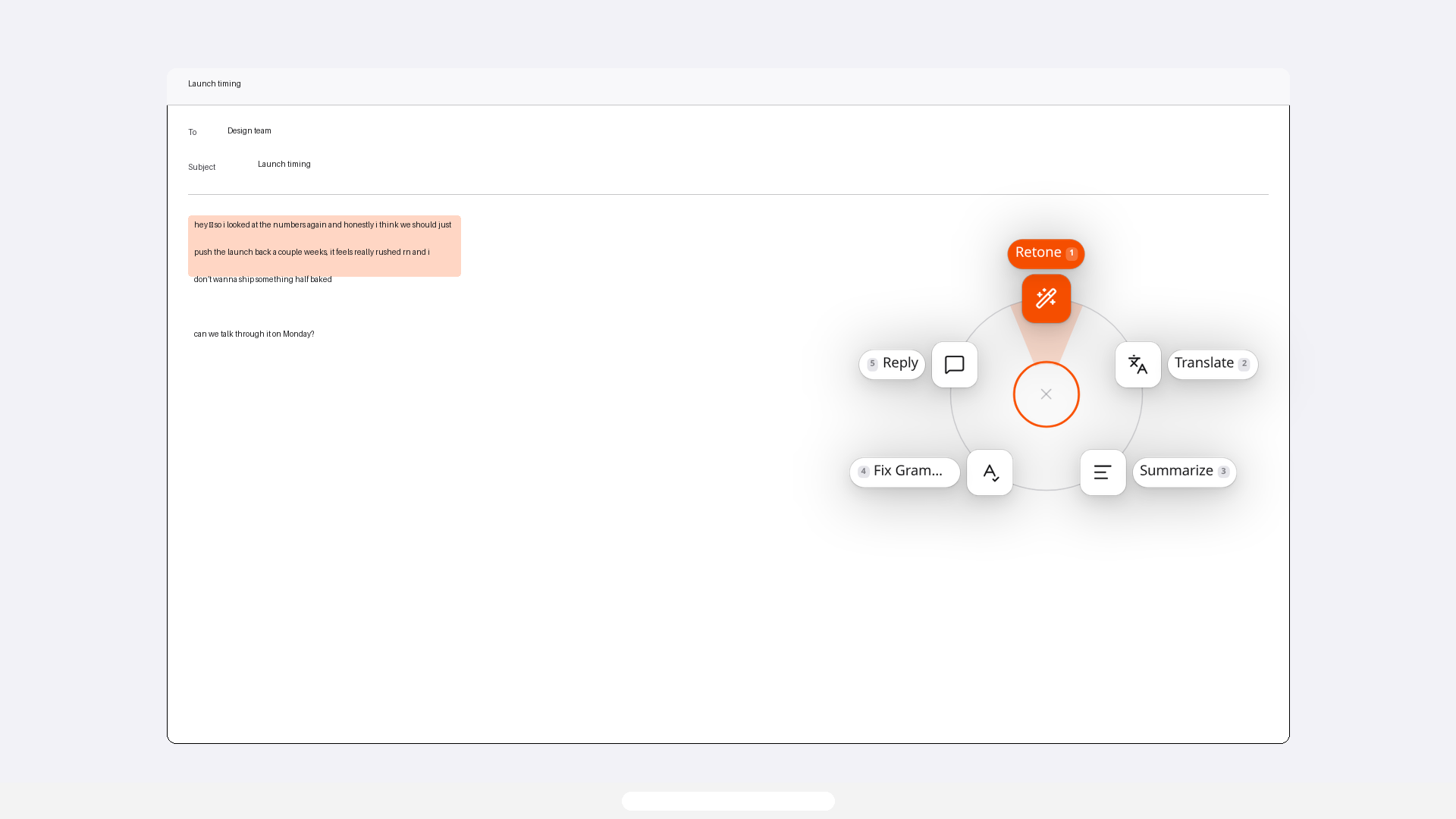
Start with a draft you can edit
Open a new email or a reply draft and write the information you want to communicate. Include the actual request, any confirmed deadline, and the context your reader needs. A rewrite can improve how you say those things; it cannot supply missing facts reliably.
Highlight only the sentence or paragraph you want to change in the compose field. Leave the greeting, signature, and other paragraphs outside the selection if they already work. An incoming email in a reading pane is a different case: it is text to respond to, rather than a draft you can replace.
Open the wheel and choose Retone
Install the Windows app and sign in, then return to your selected draft. Press Win+Ctrl+R to open the action wheel. Choose Retone when you want to change wording or tone. You can hold the shortcut, move toward the action, and release. If you release before choosing, the wheel stays open so you can select an action.
Retone uses your saved tone. If Ask for tone is enabled in Settings, you choose a tone for that rewrite. Professional suits a straightforward work request; Concise is useful when the message is longer than the task needs. The label is a starting point, so read the output and judge whether it fits your reader.
Keep the selection and caret in place while the rewrite runs. The replacement is intended for that selected text; moving elsewhere can prevent it from landing in the expected field.
Keep the request intact when changing tone
For a review request, the edited email still needs to say what should be reviewed, when comments are needed, and what depends on them. A smoother sentence is useful only if those details survive. Compare this illustrative tone edit:
Before
Hi Sam, can you look at section 3 of the supplier proposal and send me comments by Friday? I need your feedback before I share the proposal with the team.
After
Hi Sam, could you review section 3 of the supplier proposal and send your comments by Friday? I need your feedback before sharing the proposal with the team.
Use Fix Grammar when the tone already fits
Choose Fix Grammar when the message sounds appropriate but contains a spelling or grammar error. You do not need a different tone just because a sentence needs a correction. This also makes comparison easier: you can look for the correction while checking that the request still says the same thing.
Before
Hi Priya, I has attached the revised agenda. Please check item 2 before the meeting.
After
Hi Priya, I have attached the revised agenda. Please check item 2 before the meeting.
Use Reply for an incoming email
If you are answering a message you received, highlight the relevant incoming text and choose Reply. That action copies a proposed response and leaves the selected message unchanged. Paste the response into your editable reply field and review it there.
Treat the copied response as a draft. A question about whether an invoice is ready does not establish that it is ready. Correct any invented status, promise, or deadline before sending. If the relevant context spans several messages, make sure your response accounts for it.
For an editable draft, Retone and Fix Grammar replace the selection. If replacement cannot happen in the current field, a rewrite may be copied instead. Read the notification and check the compose field before pasting, so you do not duplicate text.
Review the result inside your email
Read the updated draft next to your original meaning, not just for fluency. A professional tone can still hide an incorrect request or a stronger commitment. Pay particular attention to statements that are uncertain or depend on someone else's action.
- Check names, section numbers, amounts, dates, and which item each detail belongs to.
- Keep review, approval, confirmation, and delivery requests distinct.
- Check whether may, cannot, or only if has become a firmer promise.
- Read the sentences around the edited selection to confirm that the transition still works.
- Make sure the greeting and signature fit the recipient, then send when the draft is accurate.
Take it into your next draft
Start with an editable draft, select the smallest useful passage, and choose the action that matches the change you need. Use Retone for wording or tone, Fix Grammar for corrections, and Reply when responding to incoming text. Compare facts and commitments before sending the result.